Analytics cookies
We use optional Google Analytics to understand which tools are useful and improve the site. Analytics stays off unless you accept. Privacy Policy
Turn a screenshot into a clear explanation. Point out what matters, cover private details, and review the finished image before sharing.
Free · no account · images and edits stay in this browser session.
Drop an image, paste with Ctrl/Cmd+V, or open a file.
Still PNG, JPEG or WebP
30 MB · 12 megapixels · 4096 px per side
One still image. Your original stays unchanged.
Open or paste a screenshot to begin.
Older undo steps were released to keep session memory bounded.
Want a presentation frame around the finished image? Download it, then open it in Screenshot Beautifier & Mockup Studio.
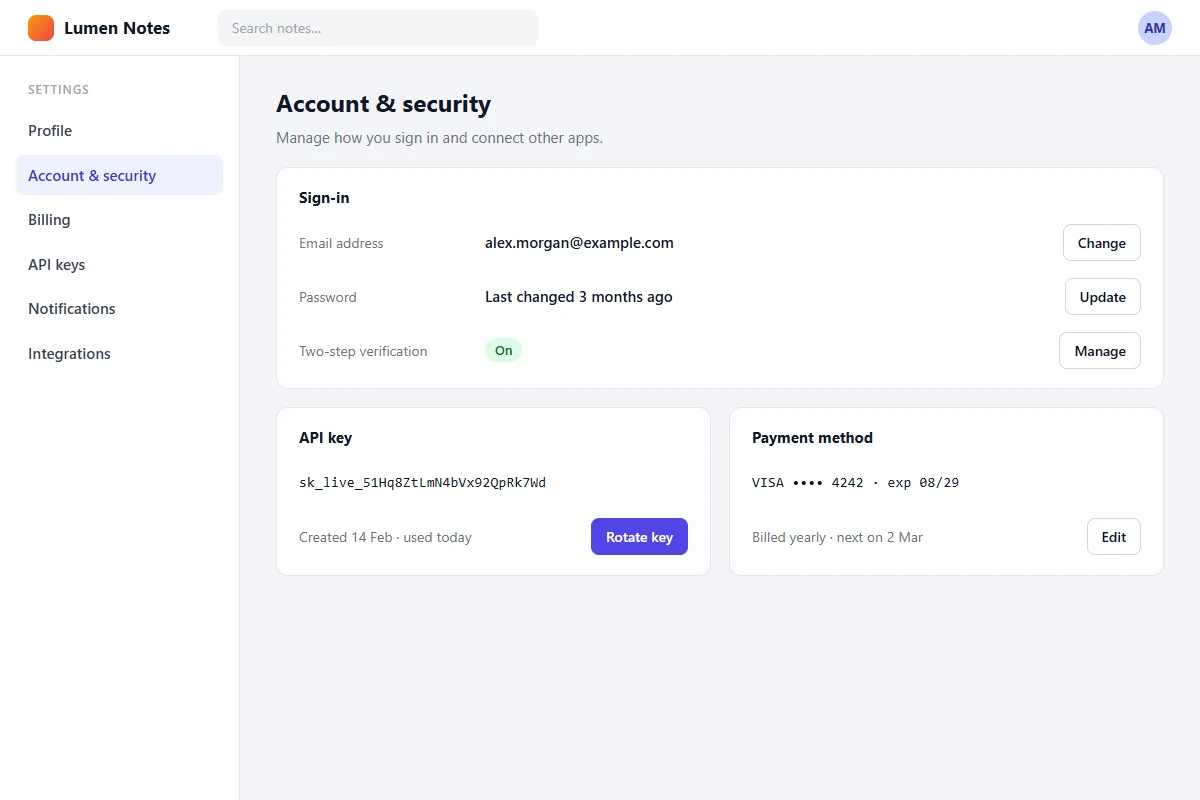
A sample settings page, annotated and exported with this tool.
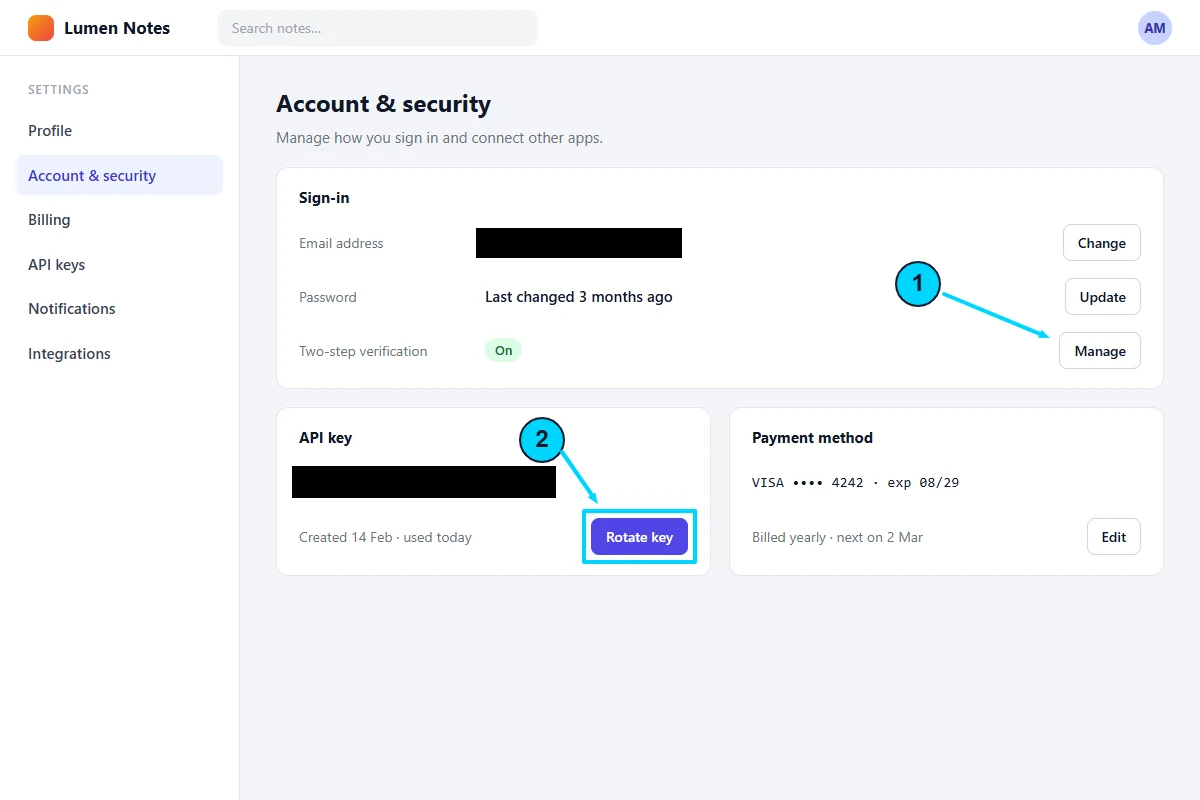
A solid cover replaces the covered pixels with opaque black in the exported raster. It stays above annotations and cannot become translucent. The output has no editable layers or embedded original screenshot, and the source file’s metadata is not copied. Browser encoders can add ordinary color or resolution information.
Blur and pixelation are visual effects. They retain source-derived patterns and can leave recoverable information. Use Solid cover for names, passwords, tokens and other secrets. Cover the whole detail, including its edges, and check for other occurrences. This tool does not detect private content automatically.
Your original file is unchanged. Undo can reveal content while editing. Clearing the image removes this session’s document and undo history; we do not claim forensic erasure from browser or device memory. Nothing in the image is sent to a processing service.
Put an arrow on the failing control, number the actions leading to it, and keep the detailed reproduction steps in the issue text. Cover account names, URLs containing secrets and unrelated notifications.
Use consistent colors and brief labels. Crop tightly enough to focus attention while retaining useful navigation context. Provide written instructions and descriptive alt text wherever you publish the screenshot; visual marks do not replace accessible text.
Exports use the crop’s exact pixel dimensions; without a crop, source dimensions are preserved after orientation. PNG is lossless and preserves transparency. JPEG uses a white matte and lossy encoding; WebP is offered only when the browser can encode it. Zoom is a view setting, not an enlargement filter. Very small labels can remain hard to read in a reduced preview, so inspect at 100%.
Text uses a system sans serif font, so appearance can differ between devices. Text wraps and clips inside its box; resize it to show longer notes. The editor supports up to 250 marks and bounded session undo. No project files, saved-image history, remote URL capture, OCR, accounts or cloud links are provided. Export your work before leaving the page.
For another delivery format or smaller file, use Web Image Converter after exporting. Decorative backgrounds and mockups belong in Screenshot Beautifier & Mockup Studio.