Analytics cookies
We use optional Google Analytics to understand which tools are useful and improve the site. Analytics stays off unless you accept. Privacy Policy
Complete a form, add your initials and signature, and check the finished pages before you download. The PDF is opened and changed in this browser tab, never uploaded.
Free · no account · no PDF uploads · your original stays unchanged
One PDF · up to 40 MB and 300 pages · not encrypted, not digitally signed
No PDF at hand?
Choose a PDF to begin. Nothing is uploaded, and nothing is saved between visits unless you ask.
Closing discards your changes. The original file on your device is never changed.
Several PDFs to sign as one document? Merge them and put the pages in order with PDF Merge & Page Organizer first, then open the result here.
A real export: the built-in sample form, filled and signed in the tool. The sample is made up, so you can try every step without your own document.
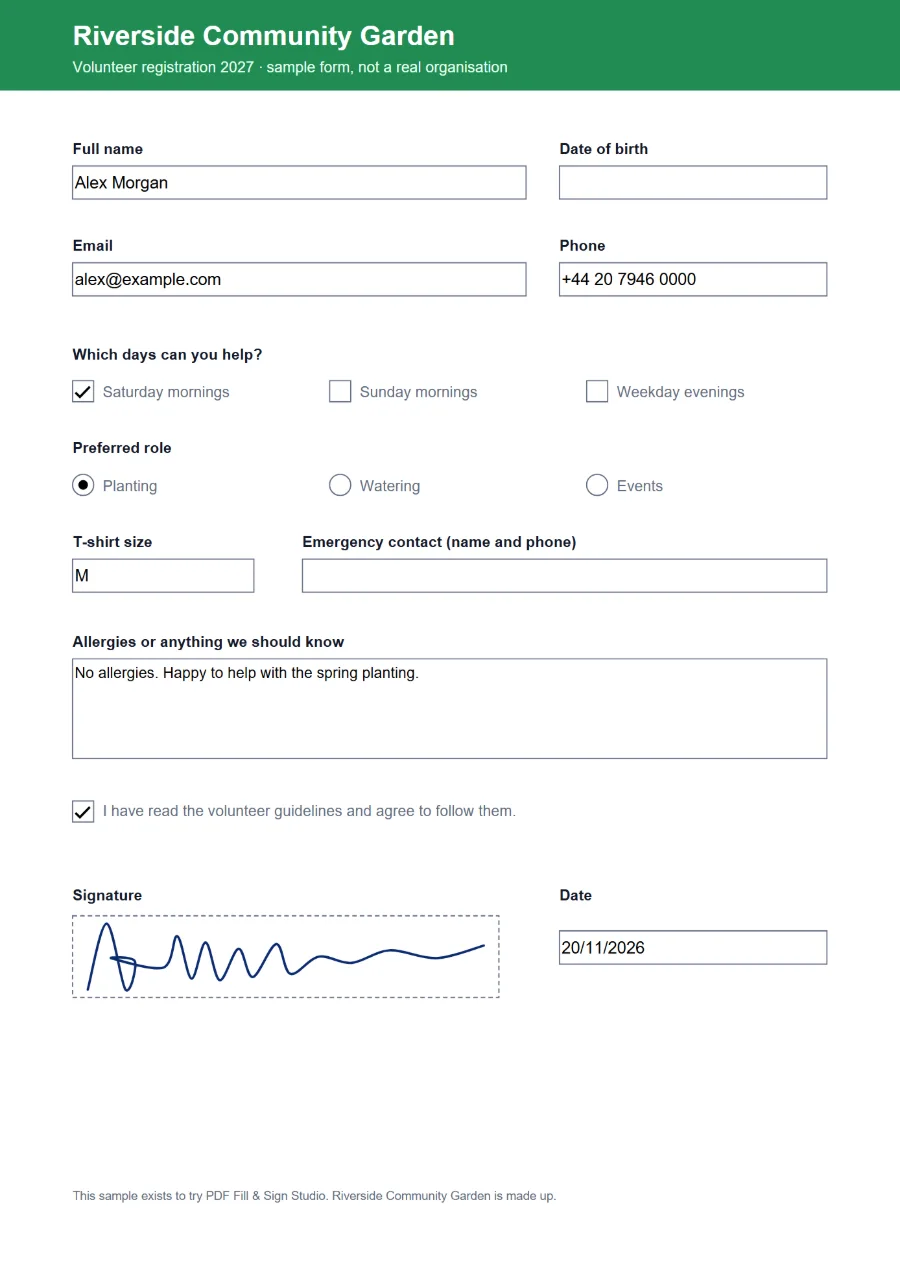
The signature you add here is an image or a drawn line on the page, the electronic version of signing a printout and scanning it. Many everyday forms, letters and agreements accept this. It is not a certificate-based digital signature (sometimes called PAdES or a qualified signature), which proves who signed and that nothing changed afterwards.
Whether a visual signature is enough depends on the document and on who will receive it. When in doubt, ask them. This page does not give legal advice.
Drawn signatures are saved as vector lines, so they stay sharp when the page is zoomed or printed. Typed signatures use a handwriting-style font that is already on your device, and uploaded ones can have a white paper background removed.
Field values, text and signatures become part of the page content, and the form is removed. The result looks the same in every PDF reader and nobody can change a filled box by accident. Choose this when you send a completed form.
Form fields keep your values and stay editable in other PDF readers. Text, dates, marks and signatures you placed are still part of the page in both modes. Choose this when someone else still has to complete the form.
Ordinary PDFs and standard PDF forms (AcroForm): text boxes, checkboxes, radio buttons, drop-down lists and list boxes. Many official forms also contain a second copy of the form in Adobe’s XFA format; your entries go into the standard fields, and the downloaded copy leaves the XFA copy out so every reader shows the same values. Adobe Reader usage rights, if any, are removed by any edit, and the tool tells you when that applies.
Some PDFs are refused, with the reason shown: encrypted or password-protected files, files that already carry a digital signature or certification (editing would break it), and dynamic XFA forms that only Adobe software can draw. Form calculations and scripts do not run here, so check computed totals yourself.
Text in Latin script (including accented letters such as ă, ș, ł or ő), Greek and Cyrillic is supported. Characters outside these, such as Chinese or Arabic, are named and refused rather than turned into question marks.
Yes. Open the PDF, select Signature and draw with your finger in the signature box, or type your name. To place it, drag it on the page; the bar at the bottom of the screen makes it larger or smaller, turns it or removes it.
Only if you tick “Remember it on this device” when you create it. It is then kept in this browser’s local storage, never sent anywhere, and you can delete it in the signature window. Otherwise it is forgotten when you close the PDF or the page.
No. Your file is read into this page’s memory and a new PDF is built from it when you download. The original on your device stays exactly as it was.
The review shows the finished file as PDF readers will draw it, with the form’s own font sizes, alignment and character boxes. If text is cut off there, shorten it or use a smaller text item instead of the field.